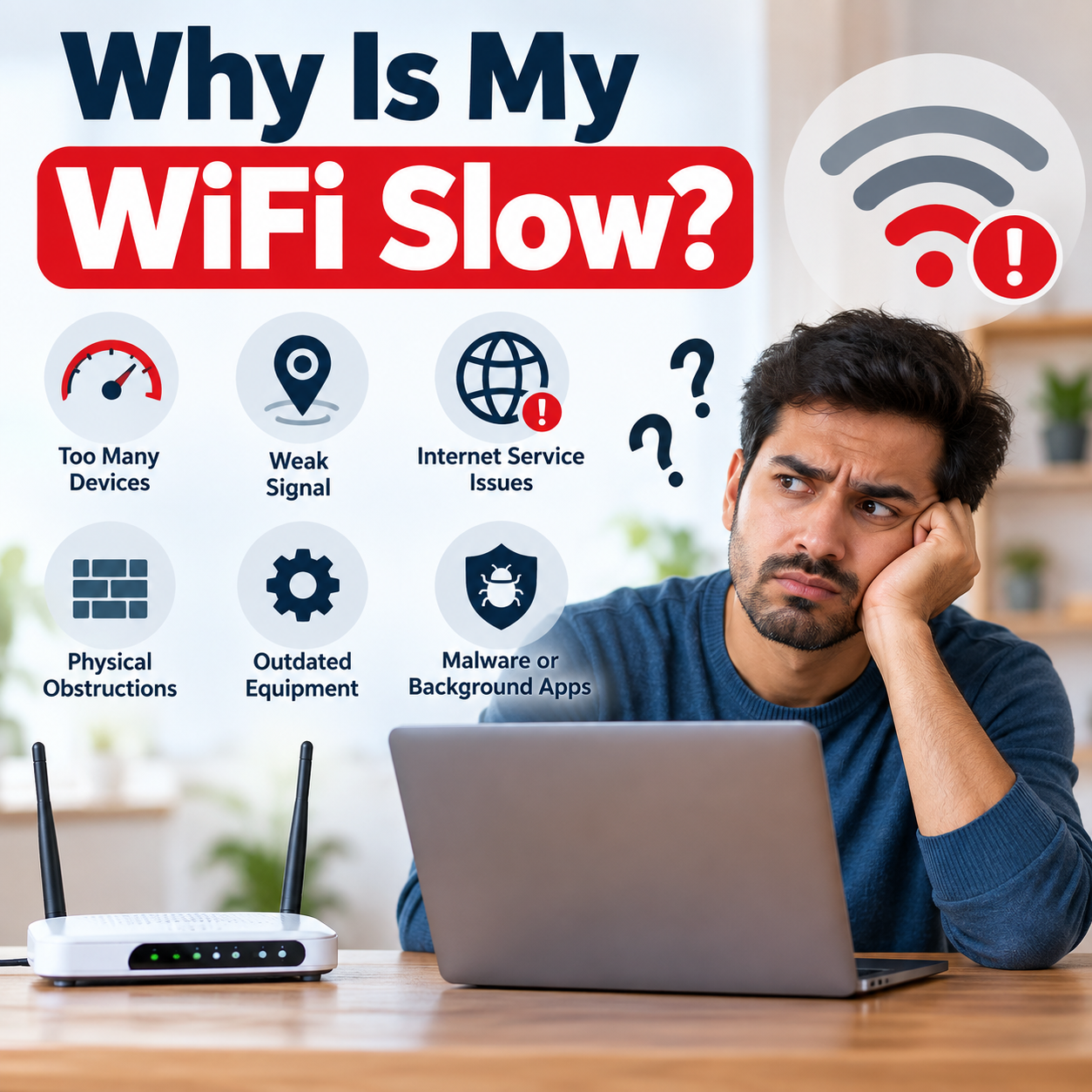
Why Is My WiFi Slow in Dubai? 10 Things to Check Before Calling a Technician
Quick answer: Slow WiFi in Dubai is usually caused by router placement behind concrete or steel walls, channel congestion in dense apartment buildings, too many connected devices, an ageing router, or an ISP-side issue rather than faulty equipment. Work through the 10 checks below — most take under five minutes — before booking a technician visit.
Why WiFi Problems Are So Common in Dubai Homes
Dubai’s building stock works against home WiFi in a few specific ways. Most apartments and villas are built with reinforced concrete and steel-mesh walls, which absorb WiFi signal far more aggressively than the timber-frame walls routers are designed around in Europe or North America. High-rise towers in areas like Dubai Marina, JLT, Business Bay, and Downtown Dubai also pack dozens of networks into the same floor, so your router is competing with your neighbours’ for the same handful of WiFi channels. And for several months of the year, ambient heat inside equipment cabinets or near sun-facing windows pushes routers into thermal throttling, where the chipset deliberately slows down to avoid overheating.
None of that means you need new hardware right away. Most “slow WiFi” complaints in Dubai trace back to one of the ten things below — check them in order, since the first few fix the majority of cases.
Unplug both your router and your fibre ONT (the small box your internet provider installed, separate from the router) for 30 seconds, then plug the ONT back in first and wait for its lights to stabilise before powering the router back on. This clears memory leaks and temporary congestion that build up over weeks of continuous uptime, and it resolves a surprising share of “my WiFi has been slow for days” cases on its own.
2. Move Your Router Away from Concrete and Steel
Router placement matters more in Dubai than almost anywhere else. Concrete load-bearing walls, steel reinforcement, and even large mirrors or metal-backed furniture can cut WiFi signal strength by half or more per wall crossed. Check these four things about your router’s current spot:
Inside a TV console, media cabinet, or storage cupboard (move it out into open air)
Tucked behind a concrete pillar or load-bearing wall between the router and the room you use most
Sitting on the floor (elevate it to shoulder height or higher — WiFi radiates outward and slightly downward from the antennas)
Near a microwave, baby monitor, or other 2.4GHz device that can interfere with the same frequency band
A central, elevated, open placement is the single highest-impact free fix available, especially in villas where the router is often left in a study or store room far from where the family actually spends time. In two-story villas specifically, a router left on the ground floor typically leaves the upper floor noticeably weaker — placing it as centrally as possible between floors, such as near the top of a staircase, gives far more even coverage than a ground-floor cupboard ever will.
3. Keep Your Router Out of Direct Sun and Heat
Consumer routers are typically rated for continuous operation up to around 40°C ambient temperature. A router placed near a sun-facing window, on top of a warm appliance, or inside an unventilated cabinet during Dubai’s summer can regularly exceed that, causing the chipset to throttle its own performance to avoid overheating — or to intermittently drop connections altogether. If your WiFi consistently gets worse in the afternoon and improves overnight, heat is a likely culprit. Move the router to a shaded, ventilated spot and the pattern usually disappears within a day.
4. Switch Congested Devices from 2.4GHz to 5GHz — and Check Your Channel
Most routers broadcast two networks at once: a 2.4GHz band with longer range but far more interference (it’s shared with neighbouring routers, Bluetooth devices, and smart home gadgets), and a 5GHz band that’s faster and less crowded but doesn’t travel as far through walls. In a dense building with dozens of neighbouring 2.4GHz networks overlapping on the same channels, that congestion alone can cut real-world speed significantly. For any device near the router — laptop, smart TV, gaming console — connect it to the 5GHz network by name (often labelled with a “-5G” suffix) rather than letting it default to 2.4GHz.
If switching bands doesn’t fully solve it, your router may also be sitting on a crowded channel within that band, which is common in towers with dozens of overlapping networks. Most router apps let you set the channel manually instead of relying on auto-select, and a free WiFi analyzer app on your phone can show you which channels are least crowded in your building before you pick one.
5. Count What’s Actually Connected
Open your router’s app or admin page and check the connected-devices list. Smart home setups in particular accumulate devices quietly — smart plugs, cameras, video doorbells, robot vacuums, and voice assistants all hold a constant low-level connection even when idle, and a handful of forgotten devices from house guests or old phones can also still be attached. More importantly, check what’s actively pulling bandwidth right now: a phone backing up photos to the cloud, a smart TV downloading an update, or a second household member on a video call can each consume enough bandwidth to make everything else feel slow, independent of your internet plan’s actual speed.
Connect a laptop directly to the router with an ethernet cable and run a speed test. If wired speed matches what you’re paying for but WiFi doesn’t, the problem is your wireless setup — placement, congestion, or hardware. If wired speed is also slow, the issue is upstream: your ONT, the cabling into the property, or an ISP-side fault, and no amount of router repositioning will fix it. This single test is the fastest way to know which of the two problems you actually have before you spend time on the rest of this list.
7. Run a Speed Test Against Your Actual Plan — and Rule Out Throttling
Test at a few different times of day — including evening peak hours — and compare the result to the plan you’re actually paying Etisalat (e&) or du for, not just to “how fast it feels.” A result that’s consistently well below your plan’s advertised speed, at every time of day and on a wired connection, points to an ISP-side issue worth raising with them directly rather than a home network problem.
If you suspect your provider is intentionally slowing certain traffic rather than just underperforming generally, run the same wired speed test with a VPN switched on and off. If speed improves noticeably with the VPN active, your ISP may be shaping specific types of traffic rather than your connection as a whole — worth raising with them directly, with both results as evidence. Both providers also publish known-outage information through their apps, which is worth checking before assuming the fault is on your end.
8. Check Firmware and Router Age
Router firmware updates patch performance bugs and security issues, but most people never install them because routers rarely prompt for it the way phones do. Check your router’s app or admin page for a firmware update option. Separately, if your router is an ISP-supplied unit that’s more than four to five years old, or has been running continuously in Dubai heat that whole time, ageing hardware is a realistic explanation on its own — internal components degrade faster under sustained heat exposure than in cooler climates.
9. Rule Out VPNs, Parental Controls, and QoS Settings
An active VPN routes all your traffic through a remote server first, which reliably reduces speed — turn it off and re-test if you use one (unless you’re specifically testing for throttling as described above). Separately, check your router’s admin page for Quality of Service (QoS) rules or parental control bandwidth limits, which sometimes get enabled during setup — often by an ISP technician or a previous tenant — and quietly cap speed for specific devices or the whole network without anyone realising it’s on.
10. Consider Whether One Router Is Enough for Your Space
If every check above comes back clean and speed is genuinely fine near the router but drops off in other rooms, that’s not really a “slow WiFi” problem — it’s a coverage problem, and the fix is different. Villas, duplexes, and larger apartments routinely need more than one access point to cover every room evenly; a single router, however well placed, has physical range limits that concrete construction makes worse. That’s a mesh WiFi or wired access point conversation rather than a troubleshooting one.
WiFi Troubleshooting for Specific Situations
The ten checks above cover general slowdowns. If your problem is more specific than “everything is slow,” one of these is probably closer to what’s actually happening.
One Device Is Slow, But Everything Else Is Fine
If only one phone, laptop, or TV is struggling while other devices on the same network test fine, the problem is almost always local to that device rather than your network. Common causes include an older or weaker WiFi chipset in that specific device, it being connected to the more congested 2.4GHz band while your other devices sit on 5GHz, a battery-saver or low-power mode quietly throttling background WiFi use (common on phones), or an outdated driver. Try forgetting the network on that device and reconnecting, checking which band it joined, and confirming power-saving mode isn’t on.
Remote Work and Video Calls (Zoom, Teams, Google Meet)
Video calls are more sensitive to brief interruptions than they are to raw speed — a connection that feels fast for browsing can still stutter on a call if something else on the network spikes for even a few seconds. If your work depends on video calls: connect via ethernet if your desk allows it, since wired removes wireless contention entirely; enable Quality of Service (QoS) in your router’s app and set your work device or the call app as a priority; and if you’re on a corporate VPN, expect it to reduce your effective speed somewhat due to encryption overhead — that’s normal and not a fault with your home network.
Gaming — Reducing Ping and Jitter, Not Just Speed
For gaming, latency (ping) and how consistent it stays (jitter) matter more than download speed — a fast connection with inconsistent timing still feels laggy. Wired ethernet is the most reliable fix, since it removes WiFi’s inherent variability entirely. If wireless is your only option, connect to 5GHz rather than 2.4GHz, use QoS to prioritise your console or PC, and close anything mid-download elsewhere on the network — large downloads on another device are one of the most common causes of sudden gaming lag spikes on a shared connection.
Managing a Smart Home With Many Connected Devices
A smart home with fifteen to twenty-plus devices — cameras, plugs, sensors, voice assistants — doesn’t necessarily need more bandwidth, since most of them use very little data individually. The more common issue is connection overhead: routers have a practical limit on how many devices they can manage smoothly at once, even when each one is small. Most consumer routers are technically rated for 30 to 50 connected devices, but real-world performance often degrades before that limit, especially on older or budget hardware. Where your router supports it, putting smart home devices on a separate network from your phones and laptops keeps that background traffic from competing with the devices you actually notice slowing down.
Quick Self-Check Summary
Symptom
Likely cause
Try this first
Slow everywhere, all day
ISP plan, ONT, or wiring
Wired speed test (#6)
Fine near router, weak elsewhere
Coverage / concrete walls
Reposition or add a node (#2, #10)
Worse in the afternoon, better at night
Heat throttling
Move router out of sun/cabinet (#3)
Fine alone, slow with family home
Too many devices / bandwidth hogs
Check connected devices (#5)
Drops out randomly, reconnects itself
Old firmware or failing hardware
Update firmware, check router age (#8)
Fine on other devices, slow on just one
Device-specific (band, drivers, power-saving)
See “One Device Is Slow” above
Fine for browsing, stutters on calls or games
Latency/jitter, not raw speed
See remote work / gaming above
When It’s Time to Call a WiFi Technician
These checks resolve the majority of slow WiFi complaints we see in Dubai homes and offices. It’s worth booking a technician instead of continuing to troubleshoot when:
Why Is My WiFi Slow
Wired speed tests confirm the problem is upstream of your router, but your ISP says the line tests fine
You’ve confirmed it’s a coverage problem and need a proper mesh WiFi installation or wired access points rather than a single router
You’re setting up a new villa or office and want the network configured correctly from day one rather than fixed later
The router is genuinely old, damaged, or was never professionally configured (common with ISP-supplied units left on factory settings)
You’ve tried everything above and the problem hasn’t changed
Why is my WiFi slow even though I have a fast internet plan?
A fast plan only guarantees speed up to your router. Placement, wall material, band congestion, and the number of connected devices all affect what actually reaches your phone or laptop, independent of your plan’s advertised speed.
Why does my WiFi get worse in the afternoon?
This pattern points to heat. Routers placed near sun-facing windows or inside unventilated cabinets can throttle their own performance once internal temperatures rise during the hottest part of the day.
Should I connect to the 2.4GHz or 5GHz network?
Use 5GHz for anything near the router, since it’s faster and less congested. Use 2.4GHz only for devices far from the router or with thick walls in between, since it has longer range at the cost of speed.
Does the concrete in my apartment actually affect WiFi that much?
Yes. Reinforced concrete and steel mesh are among the most signal-blocking building materials in common use, which is why router placement matters more in Dubai high-rises than in most timber-frame housing elsewhere.
How do I know if the problem is my router or my internet provider?
Run a speed test with a laptop plugged directly into the router via ethernet. If that result matches your plan, the issue is your WiFi setup. If it doesn’t, the issue is upstream with your ONT, wiring, or ISP.
How many devices can a home router actually handle at once?
Most consumer routers are technically rated for 30 to 50 connected devices, but real-world performance often starts to degrade well before that limit, especially on older or budget hardware, since it’s the total active traffic rather than the device count alone that matters most.
What’s the difference between WiFi signal bars and actual internet speed?
Signal bars show connection quality between your device and the router, not the speed of your internet line. It’s possible to have full bars with a slow connection if the issue is upstream with your ISP, or weak bars that still deliver acceptable speed over a short distance.
How can I tell if my ISP is throttling my connection?
Run a wired speed test with a VPN switched off, then the same test with it switched on. If speeds improve noticeably with the VPN active, your provider may be slowing specific types of traffic rather than your connection overall, which is worth raising with them directly.
Can old smart home devices slow down my whole network?
Yes. Every connected device holds a constant low-level connection even when idle, and forgotten or unused devices add up. Checking your router’s connected-device list regularly is worth doing every few months.
Is it normal to need more than one router in a villa?
Yes, and it’s common. A single router has physical range limits that concrete interior walls make worse, so most villas and larger apartments need a mesh system or additional access points for even coverage.
Will restarting my router fix a slow connection?
Often, yes — power-cycling clears temporary memory and connection buildup and is worth doing first, before any other troubleshooting step.
How often should I replace my router?
Most consumer routers perform reliably for four to five years. In continuous use through Dubai heat, hardware can degrade faster, so persistent problems on an older router are often a hardware-age issue rather than a configuration one.
Does WPA3 security slow down my WiFi compared to WPA2?
In practice, no — the performance difference between WPA2 and WPA3 encryption is negligible on modern routers. If your router supports WPA3, using it is a security upgrade with no meaningful speed trade-off.
How do I know if a neighbour is using my WiFi without permission?
Check your router’s connected-devices list for anything you don’t recognise, and confirm your network is secured with WPA2 or WPA3 and a strong password rather than left open or on a weak default. If you find unfamiliar devices, changing your WiFi password immediately removes them.
Does changing my DNS server actually make browsing faster?
It can make websites feel faster to load by speeding up the address lookup step, though it won’t change your actual download or upload speed. It’s a low-risk change worth trying, but not a fix for a genuinely slow connection.
Do you offer same-day WiFi technician visits in Dubai?
Yes. RepairZone offers same-day WiFi and internet technician visits across Dubai for diagnosis, router configuration, mesh installation, and dead zone fixes.
We use cookies to ensure that we give you the best experience on our website. If you continue to use this site we will assume that you are happy with it.